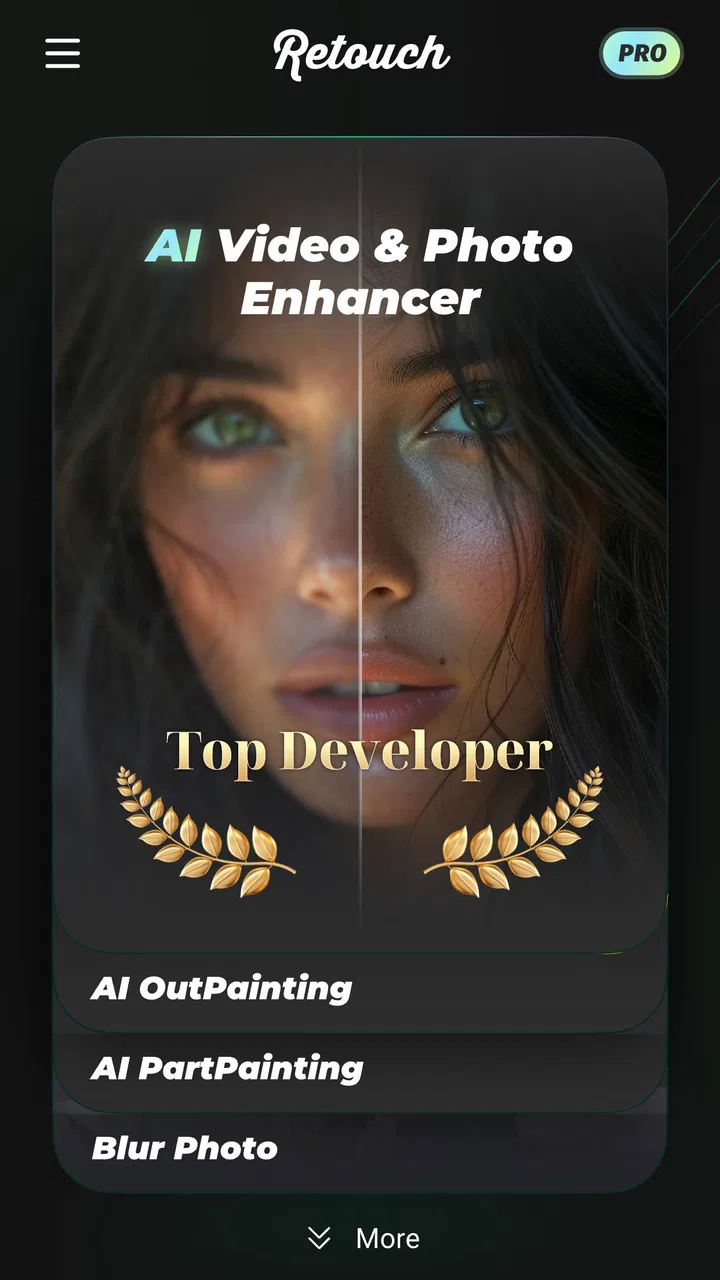
Retouch Remove Objects Editor
- 4.6
- Rating
- 10.00M
- Installs
- Free
- Price

 Analysis by App-foxy
I came away from Retouch Remove Objects Editor with a fairly clear impression: it is a focused photo-cleanup tool that tries to make difficult edits feel quick rather than technical. Its main appeal is the ability to remove unwanted people, objects, watermarks, and backgrounds without asking me to learn a full desktop editor. That makes it useful for everyday photos, but it is not a complete replacement for a serious retouching suite.
In my experience, the app works best when I treat it as a problem solver for one distracting detail. A stranger in the background, a sign across a product shot, or clutter near the edge of a picture can often be addressed faster here than in a traditional editor. The results depend heavily on the surrounding image, so I would not describe it as magic. Still, the combination of object removal, people removal, watermark cleanup, video-related removal tools, and background editing gives it a broader role than a basic healing brush.
What the editing experience feels like in everyday use
The app sits in the photography category and comes from VIDEOSHOW Video Editor & Maker & AI Chat Generator. It is free to install, with optional in-app purchases ranging from $0.99 to $89.99 per item. I appreciate that the basic entry point is easy to understand: choose an image, identify the unwanted area, and let the retouching process handle the reconstruction. That is much less intimidating than opening a layered editor filled with unfamiliar tools.
You May Also Like

 Blood Strike: 2.5 Anniversary
Blood Strike’s Loadouts Turn Every Drop Into a Tactical Gamble
A close look at Blood Strike’s custom loadouts: how fast access to signature weapons reshapes its battle royale rhythm, rewards preparation, and narrows the gap between fights.

 Pandora - Music & Podcasts
Pandora’s Music Is Easy to Start, but Harder to Recover
Pandora’s strength is its low-effort path from a seed to a station. Its weak spot is how much confidence it asks you to place in connection, setup, and quiet recovery.

 8 Ball Pool
 Is Built on Rivalries, Rematches, and Routine
A close look at the rivalries, rematches, shared routines, and unanswered safety questions that turn a quick pool match into a persistent mobile community.

 Samsung Music
’s Quiet Strength Is Playing What You Already Own
Its reach comes less from spectacle than from dependable access to a personal library. That simplicity is both the app’s strongest retention engine and its ceiling.

 AccuWeather: Weather Radar
AccuWeather Review: A Quick, Clear Forecast for Everyday Decisions
For everyday plans, the best forecast is the one you can understand quickly. AccuWeather makes rain timing, radar, and local conditions easy to act on, with a few trade-offs.

 Hill Climb Racing
Why Hill Climb Racing Still Turns Crashes Into One More Run
A tiny car, a bumpy hill and one more upgrade: Hill Climb Racing keeps resurfacing because its simple chaos makes every near-miss feel personal.
More From Our News Desk



The most useful way to approach it is with a specific goal. If I am trying to rescue a holiday photo, I first look for isolated distractions rather than attempting to redesign the whole image. A person standing against a plain wall is a good candidate. A small object on pavement, grass, sky, or a relatively even surface is another. The app has a much harder job when the unwanted subject overlaps hair, fingers, patterned clothing, text, or a detailed architectural line.
That distinction is important because automatic removal tools often look impressive in a quick preview but become less convincing when I zoom in. I found it better to make a modest selection around the distraction instead of painting a huge area. A smaller selection gives the editor less surrounding detail to guess, and it also reduces the chance of soft halos or repeated textures appearing around the edited spot.
For a realistic daily scenario, imagine taking a product photo for a local listing. The item is fine, but a cable, sticker, or unrelated object is visible beside it. Rather than retaking the photograph, I can use the retouching workflow to clean the frame, then check the edges at full size before saving. That is where this app earns its place: not as a replacement for photography, but as a quick second chance when the original shot is almost right.
Object removal is the central strength
The strongest part of the app is its clear emphasis on removing visual distractions. Many general photo editors include a healing or clone tool, but they often bury it among filters, frames, color adjustments, and social templates. Here, the removal purpose is much more prominent. That focus makes the app easier to recommend to someone who does not want to spend time learning layers or manually sampling nearby pixels.
I also like the way this kind of workflow encourages selective editing. Instead of applying a dramatic filter to hide a problem, I can preserve the original lighting and color while dealing with one unwanted element. That is especially valuable for family photos and travel pictures, where the goal is usually to keep the moment looking natural rather than turn it into an obvious effect.
There is a practical trade-off, though. The more complex the background, the more carefully I need to inspect the result. Repeated bricks, fences, tree branches, and crowds give an automated editor many possible patterns to confuse. If the removed object crosses a strong line, the reconstructed area may look slightly bent or smeared. I would use the app confidently for small corrections, but I would not assume that every large removal will be ready to publish without a close review.
People and watermark cleanup need realistic expectations
Removing a person can be more valuable than removing a small object, particularly in travel photos where an otherwise perfect view is blocked by someone passing through the frame. The feature is most convincing when the person occupies a limited area and the background behind them is visually simple. It becomes less reliable when the person covers an important subject or when several people overlap.
Watermark removal is similarly dependent on context. A mark over a plain corner is a different problem from a mark placed across a face, a product label, or detailed lettering. I would also use this feature only on material I own or have permission to edit. The tool can help clean up my own exported work or personal images, but it should not be treated as permission to erase ownership information from someone else’s content.
One useful habit is to compare the edited image with the original before sharing it. A removal can look acceptable at thumbnail size and reveal obvious repetition when viewed more closely. I prefer to keep the original untouched, make one edit at a time, and stop if the reconstruction begins to draw more attention than the original distraction. That simple workflow prevents an automated correction from becoming a new visual problem.
Background editing expands its usefulness
The background tools make the app more than a single-purpose eraser. They are useful when I want to separate a subject from its surroundings, prepare a cleaner profile image, or create a simple product presentation. This can save time compared with manually tracing an outline, especially when the subject has a clear contrast against the background.
Edges are where I would judge the result most carefully. Hair, plant leaves, transparent objects, and soft fabric are difficult for any automatic background system. A cutout may look fine around the body but show a faint fringe around fine details. For a casual social image, that may be acceptable. For a shop image, portfolio piece, or professional profile, I would inspect the outline against both a light and a dark background before deciding that it is finished.
A useful non-obvious workflow is to use background removal after cleaning the original image, not before. If there is a distracting object touching the subject’s outline, separating the background first can make the edge harder to judge. Removing obvious clutter while the entire scene is still visible gives me a better chance to catch accidental cuts and unnatural gaps.
Video-related tools are appealing but raise the quality bar
The app’s store summary also points to removing elements from video. That is an attractive addition because unwanted people and objects are often more noticeable in moving footage than in a single photograph. However, video cleanup is inherently more demanding: the unwanted area changes position, the background changes from frame to frame, and any flicker or inconsistency can become obvious during playback.
I would therefore approach video editing with shorter clips and modest expectations. A small, steady distraction may be manageable, while a moving subject crossing a busy scene is a much more difficult assignment. Before sharing a result, I would watch the entire clip rather than judging only a still frame. A clean first moment does not guarantee that the removal remains stable later.
This is also where the app differs from a conventional desktop video editor. Dedicated editors usually offer more control over masks, tracking, keyframes, and corrections, while this app prioritizes accessibility. If I need precise frame-by-frame control, a full video editor is the better choice. If I want to try a quick cleanup without building a complicated timeline, the simpler approach is more appealing.
What I would watch before paying
The free price makes it easy to test the workflow with real images, but optional purchases deserve attention before I commit to frequent use. The available purchase range is wide, so I would check exactly what an individual purchase unlocks and whether it matches my needs before spending money. Someone who only edits an occasional holiday photo may not value the same option as a creator who retouches images every day.
I would also test the app on the kinds of images I actually edit instead of relying on a polished sample. A tool can perform beautifully on a simple background and struggle with my typical photos. Trying a portrait, a busy street scene, a product image, and a short video gives me a much more honest view of its usefulness.
The current version is 2.3.4.2, and the app works on Android versions starting with 6.0. That broad compatibility is convenient for people using older supported devices, although editing performance can still vary with image size, video length, and the phone itself. I would keep enough free storage available for source files and exported results, particularly when experimenting with video.
Where it fits beside ordinary alternatives
Compared with a basic phone gallery editor, this app offers a more direct route to removing people and objects. Gallery tools are often excellent for cropping, rotating, exposure, and simple filters, but they may not make content removal the main experience. If my only need is to brighten a picture or straighten it, I would probably stay in the gallery. If the problem is an unwanted element, this app is more purpose-built.
Compared with a full professional editor, it is easier to approach but less suitable for precision work. Desktop applications provide deeper control over layers, masks, cloning, and selective adjustments. They are the right choice when I need repeatable results, exact edges, or a carefully managed project. The trade-off is time: a professional workflow can be excessive for deleting one rubbish bin from a vacation photo.
Compared with a general mobile design app, the difference is focus. Design apps are better when I want text, layouts, stickers, templates, and a finished social graphic. Retouch Remove Objects Editor makes more sense when the photograph itself is nearly complete and needs cleanup. I would not choose it to build a poster, but I might use it before moving the cleaned image into another app.
That combination suggests a sensible two-step workflow for some users. I can perform the difficult cleanup here, save a natural-looking result, and then use a separate design or gallery tool for cropping and presentation. The important point is not to force one app to do every job. Its value comes from handling the removal task quickly and then getting out of the way.
Who will get the most from it
I think the app is a strong fit for casual photographers, travelers, families, marketplace sellers, and social media users who regularly encounter small imperfections. It is also approachable for people who find traditional editing software overwhelming. The Everyone 10+ content rating makes it suitable for a broad audience, though younger users should still understand that editing another person’s image carries privacy and consent responsibilities.
It is particularly useful for someone who takes many photos in unpredictable places. I cannot control every passerby, sign, cable, or piece of litter when I am outside. Having a dedicated removal workflow means I do not need to discard a good composition immediately. The app is also handy for preparing simple product photos where a clean background matters more than elaborate artistic styling.
I would recommend skipping it if my priority is professional-grade compositing, detailed portrait retouching, or exact video post-production. People who need advanced color management, carefully controlled layers, or dependable tracking should look toward more specialized tools. I would also hesitate if I dislike checking automated edits manually, because the best results still require judgment rather than a single tap.
The app has built a substantial audience, with an average rating of 4.6 from around 403 thousand ratings and more than 10 million installs. Those figures suggest that the straightforward retouching idea resonates with many users, but they do not tell me whether it will handle a particular photograph. My own recommendation remains conditional: test representative images first, especially if I plan to pay for additional capabilities.
My practical workflow for cleaner results
I begin by choosing the highest-quality original available. A compressed screenshot gives the editor less detail to work with and makes flaws more visible after export. I then remove the largest obvious distraction first, save or preview the result, and only afterward handle smaller marks. This order helps me see whether the main correction has changed the balance of the image.
For people removal, I avoid selecting extra background whenever possible. I work in sections if the subject is large, because one oversized selection can encourage the app to invent too much scenery at once. For watermark cleanup on my own material, I inspect nearby text and edges carefully, since repeated letters or straight lines are easy places for an imperfect reconstruction to stand out.
For background work, I check the subject against a contrasting color or scene. A light fringe can disappear against white and become obvious against black, while a dark fringe behaves in the opposite way. This is a simple quality-control step that many quick edits skip, and it often determines whether a cutout feels natural.
Finally, I compare the exported image with the original at normal viewing size and at a closer zoom. The normal view tells me whether the edit works for its intended audience; the close view reveals repeated textures, halos, and broken lines. I do not chase microscopic perfection in a casual snapshot, but I do want the correction to remain invisible at the size where people will actually see it.
My verdict after using it
My main takeaway is that this is a convenient specialist tool, not an all-purpose editing studio. It succeeds when I have one clear cleanup job and want a friendlier alternative to manual cloning. Object removal is the reason to install it, while people removal, watermark cleanup, background editing, and video-oriented tools broaden the situations in which it can help.
The limitations are just as clear. Automatic reconstruction can struggle with complicated backgrounds, overlapping subjects, fine edges, and moving footage. The free entry point is welcome, but I would investigate the purchase options carefully and test the app on my own images before relying on it for important work. Those are not deal-breakers; they simply define the right expectations.
For casual photographers and everyday creators, I would recommend giving it a try. It can rescue photos that would otherwise be left unused, and its focused interface is less demanding than a professional editor. For demanding commercial, artistic, or technical work, I would use it as a quick first pass and keep a more controlled editor available for the final result.
Overall, Retouch Remove Objects Editor earns my recommendation when speed and simplicity matter more than absolute precision. It is at its best when I use it selectively, inspect what it creates, and remember that good retouching is often about making one small change disappear rather than transforming the entire picture.
FAQs for Retouch Remove Objects Editor
01What is Retouch Remove Objects Editor used for?
Retouch Remove Objects Editor is a photo-editing app designed to remove unwanted elements from images. It can help erase people, signs, wires, blemishes, and other distractions using object-removal and healing tools. After selecting an area, the app attempts to reconstruct the background so the final picture looks cleaner and more focused.
02Is Retouch Remove Objects Editor easy to use for beginners?
The app is generally approachable for beginners because its main tools are based on selecting or brushing over the object you want to remove. Users can usually zoom in for more precise editing and undo mistakes when necessary. However, achieving a natural result may require several attempts, especially around hair, detailed textures, faces, or complex backgrounds.
03Can the app remove people and large objects from photos?
It can be used to remove both small distractions and larger objects, but the quality depends heavily on the surrounding background. Removing a small mark from a plain wall is usually easier than removing a person standing in front of a detailed scene. Large edits may leave visible smudges or repeated textures, so careful brushing and additional retouching may be needed.
04Does Retouch Remove Objects Editor work offline?
Basic editing may work without a continuous internet connection, depending on the version installed and the specific tool being used. Some features, advertisements, cloud processing, or premium functions may require internet access. Before traveling or editing offline, it is sensible to open the app once, test the desired tools, and confirm that photos can be imported and saved successfully.
05Is Retouch Remove Objects Editor free to download and use?
The app may be available as a free download, but free access can include advertisements, usage limits, watermarks, or locked advanced tools. Some versions offer in-app purchases or a subscription for additional features and a cleaner editing experience. Users should review the current Google Play Store or App Store listing carefully before confirming any payment.
Pros
- Removes unwanted objects with simple brush-based controls.
- Supports quick edits without requiring advanced photo-editing skills.
- Useful for cleaning up backgrounds
- blemishes
- and distracting details.
- Before-and-after previews make it easy to check the result.
- Compact editing workflow is convenient for occasional touch-ups.
Cons
- Complex backgrounds can leave visible smudges after object removal.
- Some useful tools or exports may require in-app purchases.
- Large photos may take longer to process on older devices.
- Results depend heavily on accurate brushing around the target area.
- Ads may interrupt editing in the free version.

Retouch Remove Objects Editor
Gallery